User Guide
This guide walks you through using Grout to download games from your RomM instance.
Important
Grout aggressively adopts new RomM features. The required RomM version matches the first three components of Grout's version number.
For a quick lookup of button controls and status-bar icons, see the Reference page.
First Launch and Login
Language Selection
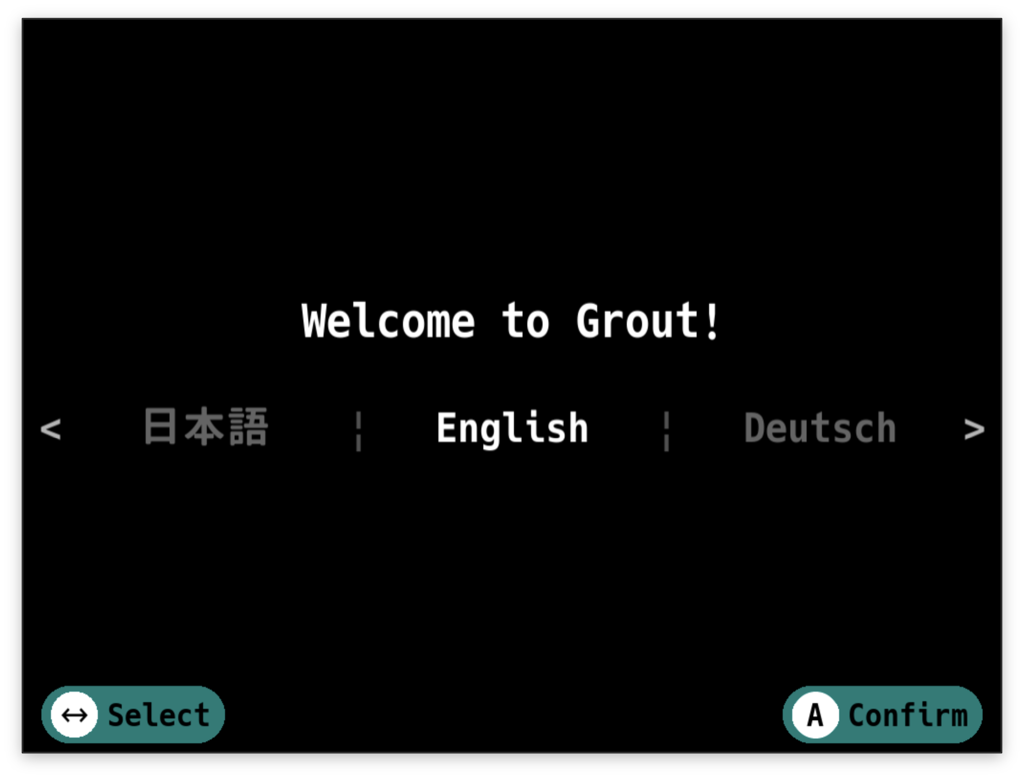
When you first launch Grout, you'll be asked to select your preferred language. Grout supports:
- English
- Deutsch (German)
- Espanol (Spanish)
- Francais (French)
- Italiano (Italian)
- Portugues (Portuguese)
- Russian
- Japanese
Use Left/Right to cycle through the available languages. Press A to confirm your selection.
You can change your language later from the Settings.
Server Connection
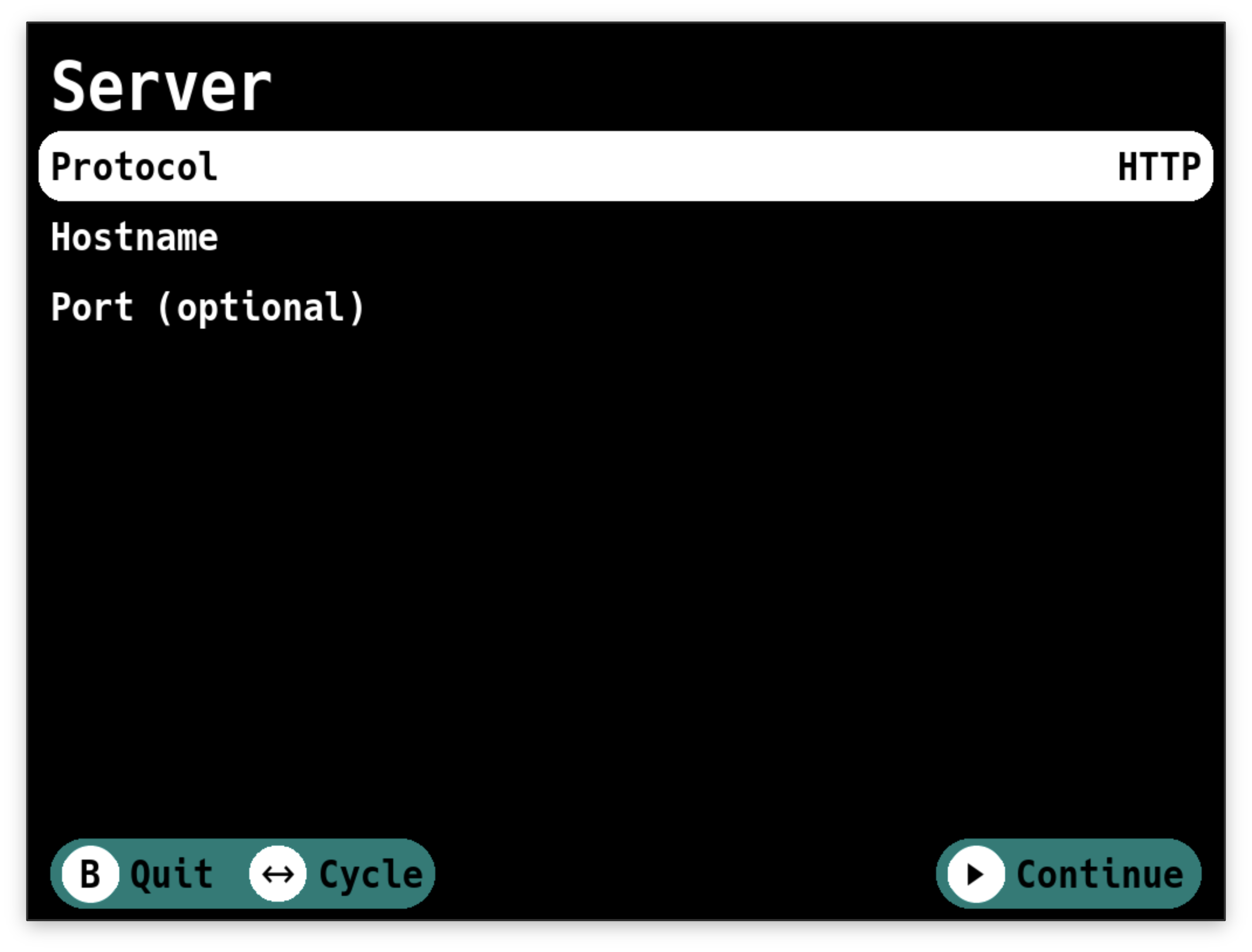
First, enter your server connection details:
- Protocol - Choose between HTTP and HTTPS using
Left/Right. - Hostname - Enter your RomM server address without the protocol.
- Port (optional) - If your RomM instance runs on a non-standard port, enter it here.
- SSL Certificates (HTTPS only) - Choose whether to verify SSL certificates:
- Verify - Validate SSL certificates (recommended)
- Skip Verification - Skip SSL certificate validation (useful for self-signed certificates or internal CAs)
Authentication
After connecting to your server, Grout authenticates using an API token. Tokens can be revoked individually and work with all RomM authentication setups, including OIDC. How you obtain the token depends on your RomM version:
- RomM 5.0 or newer - Grout shows an Auth Method picker with two choices: Pair with Another Device (the default) and Pairing Code.
- Older RomM servers - Only the Pairing Code flow is available, so no picker is shown.
The token is saved to your device and used for all future connections.
Tip
You can view token details (name, expiry) on the Grout Info screen.
Device Pairing
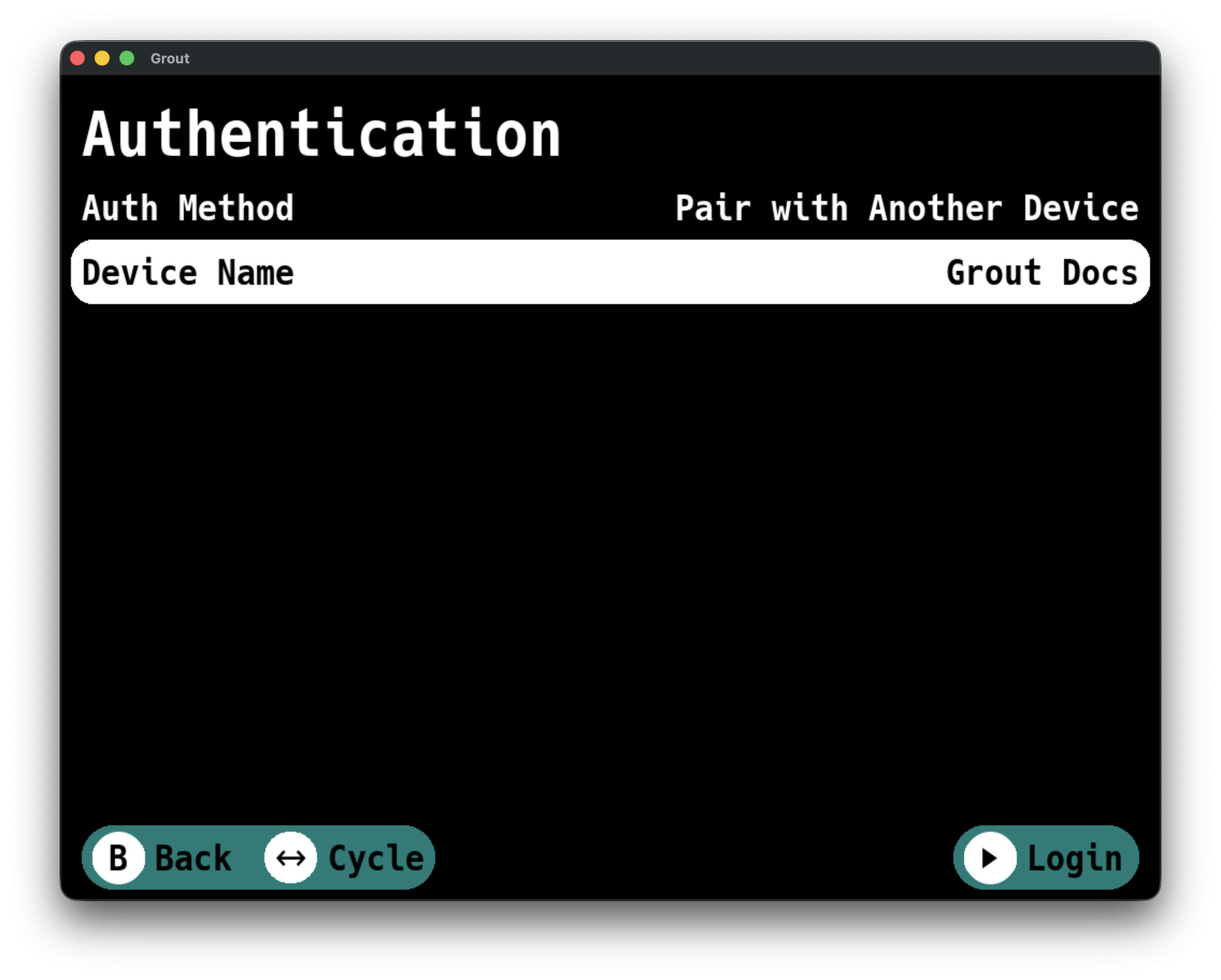
On RomM 5.0+, Pair with Another Device is the default and recommended method. You approve the handheld from your RomM web interface, so there's no long code to type on the device.
- Select Pair with Another Device as the auth method (it's the default on RomM 5.0+).
- Set a Device Name. Grout suggests your device's hostname. This name also identifies the device for Save Sync.
- Press
Startto begin pairing. Grout displays a QR code. - Scan the QR code with your phone (or another device) to open the pairing approval page in your RomM web interface, then approve the device.
- Once you approve, Grout automatically receives its API token and continues to the next step. Press
Bto cancel.
Device Pairing requests all the scopes Grout needs automatically, so there's nothing else to configure.
Pairing Code
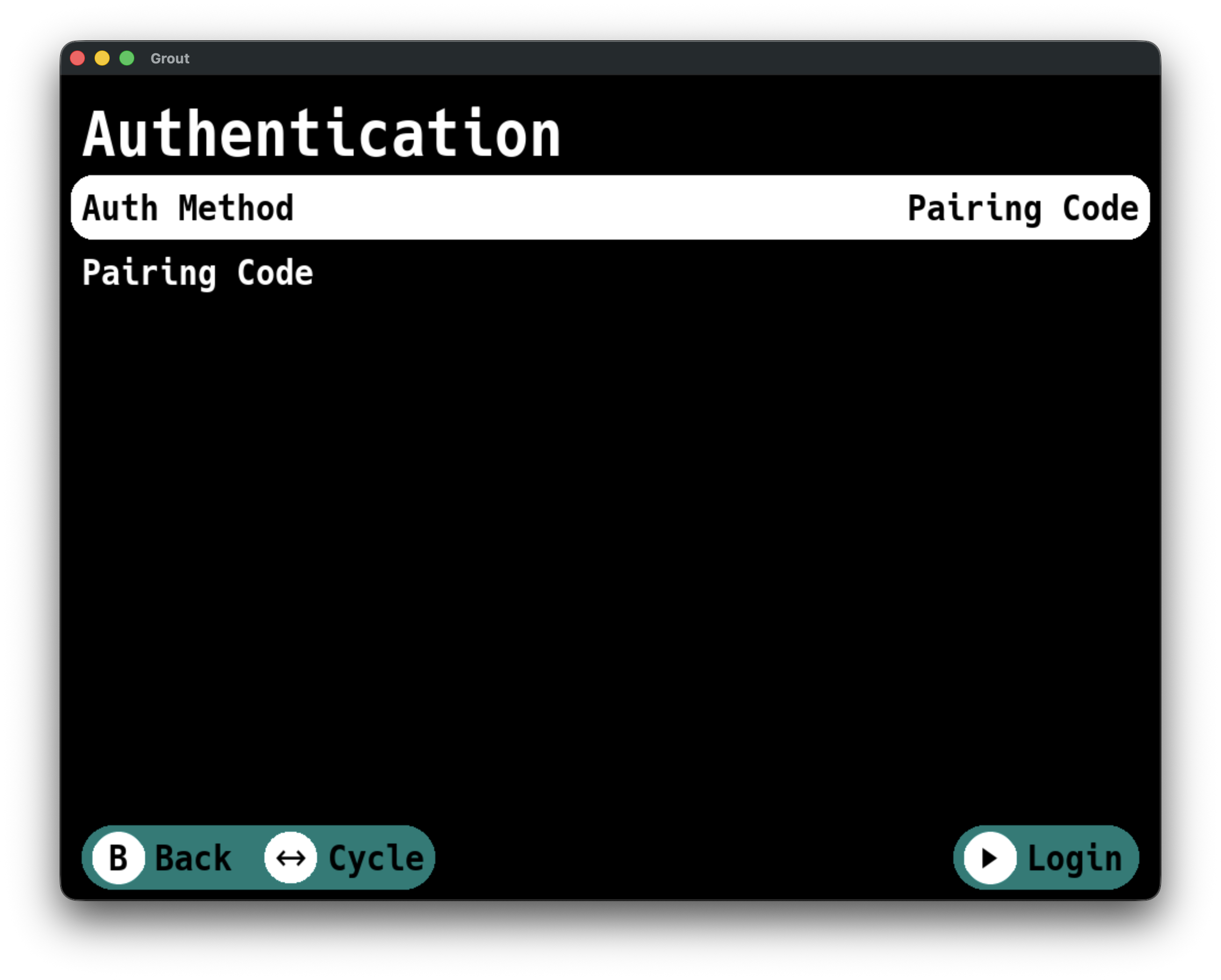
Use the Pairing Code flow on older RomM servers, or select it from the Auth Method picker on RomM 5.0+. You generate a code in the RomM web interface and type it into Grout, which exchanges it for an API token.
- In your RomM web interface, open Client API Tokens and generate a pairing code.
- In Grout, select Pairing Code as the auth method (on older servers this is the only option).
- Enter the code using the on-screen keyboard.
- Press
Startto log in - Grout exchanges the code for an API token automatically.
Required token permissions:
When creating a token for Grout, ensure it has the following scopes:
| Scope | Purpose |
|---|---|
me.read |
Read your user profile |
platforms.read |
List platforms |
roms.read |
Browse and search ROMs |
collections.read |
Browse collections |
firmware.read |
Download BIOS files |
assets.read |
Download saves and artwork |
assets.write |
Upload saves and screenshots |
devices.read |
Read device registrations |
devices.write |
Register and update devices |
Tip
Save Sync specifically needs assets.read, assets.write, devices.read, and devices.write. Grout warns you
(without blocking) if your token is missing any of these.
Platform Directory Mapping
On this screen, you map your RomM platforms to directories on your device. This tells Grout where to put the games that you download.
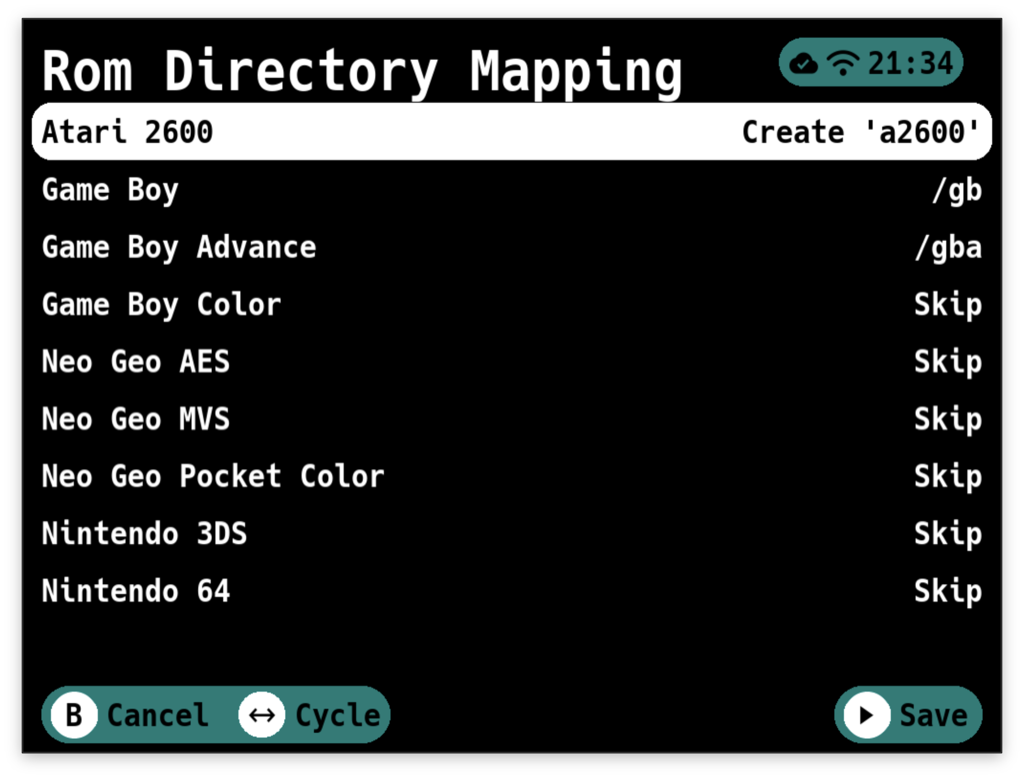
You'll see a list of all platforms from your RomM instance. For each one, you can select:
- Skip - Don't map this platform. Games from this platform won't be available to download.
- Create {Directory Name} - Create a new directory for this platform. Grout will automatically suggest directory names that match your custom firmware's expected structure.
- /{Existing Directory} - Map to an existing directory on your device.
- Custom... - Enter a custom folder name using the on-screen keyboard. Use this when your folder structure doesn't match Grout's suggestions.
Grout tries to be smart about this. If you already have a directory that matches the platform name, it'll be pre-selected. If not, it'll suggest creating one with the correct name for your firmware.
Navigation:
Left/Rightto cycle through options for the selected platformAto open a list picker showing all available options at onceUp/Downto move between platformsYto open filters (Mapping Status, Generation, Category, Family) to narrow the platform list — inside,Xresets all filters andStartapplies themStartto save your mappings
When you select Custom..., an on-screen keyboard appears where you can type your desired folder name. If you return to this screen later, any custom folder names you entered will be remembered and shown in place of "Custom...".
You can change these mappings later from Settings.
Mappings Reference
Grout uses platform mappings to determine where to save downloaded games on your device. Each Custom Firmware (CFW) uses different folder naming conventions. Use these references to see the exact folder names used by your CFW:
- Allium - Uppercase short codes (e.g.,
GB,GBA,PS) - ArkOS / dArkOS - ES-DE style folder names (e.g.,
gb,snes,psx) - Batocera - ES-DE style folder names (e.g.,
gb,megadrive,psx) - KNULLI - ES-DE style folder names (e.g.,
gb,snes,psx) - Koriki - Uppercase short codes (e.g.,
GB,GBA,PS) - MinUI - Descriptive names with tags (e.g.,
Game Boy (GB)) - muOS - Mixed short codes and descriptive names (e.g.,
gb,Nintendo Game Boy) - NextUI - Descriptive names with tags (e.g.,
Game Boy (GB)) - Onion - Uppercase short codes (e.g.,
GB,GBA,PS) - ROCKNIX - ES-DE style folder names (e.g.,
gb,snes,psx) - Spruce / SprigUI / TwigUI - Uppercase short codes (e.g.,
GB,SFC,PS) - TrimUI - Uppercase short codes (e.g.,
GB,GBA,PS)
Background Cache Sync
Grout maintains a local cache of your RomM library data (platforms, games, and collections) to provide a fast, responsive browsing experience. This cache syncs automatically in the background each time you launch Grout.
How it works:
- On startup, Grout begins syncing in the background while you can immediately start browsing
- A sync icon appears in the status bar during the sync process
- Grout uses incremental updates, only fetching data that has changed since your last session
- Games, platforms, and collections deleted on the server are removed from the cache automatically
- When complete, the sync icon updates to indicate success
First launch:
On your very first launch (after platform mapping), Grout builds the initial cache.
This may take a moment depending on the size of your library.
Tip
If you need to completely rebuild the cache from scratch, use Rebuild Cache in Advanced Settings.
Browsing Games
Main Menu
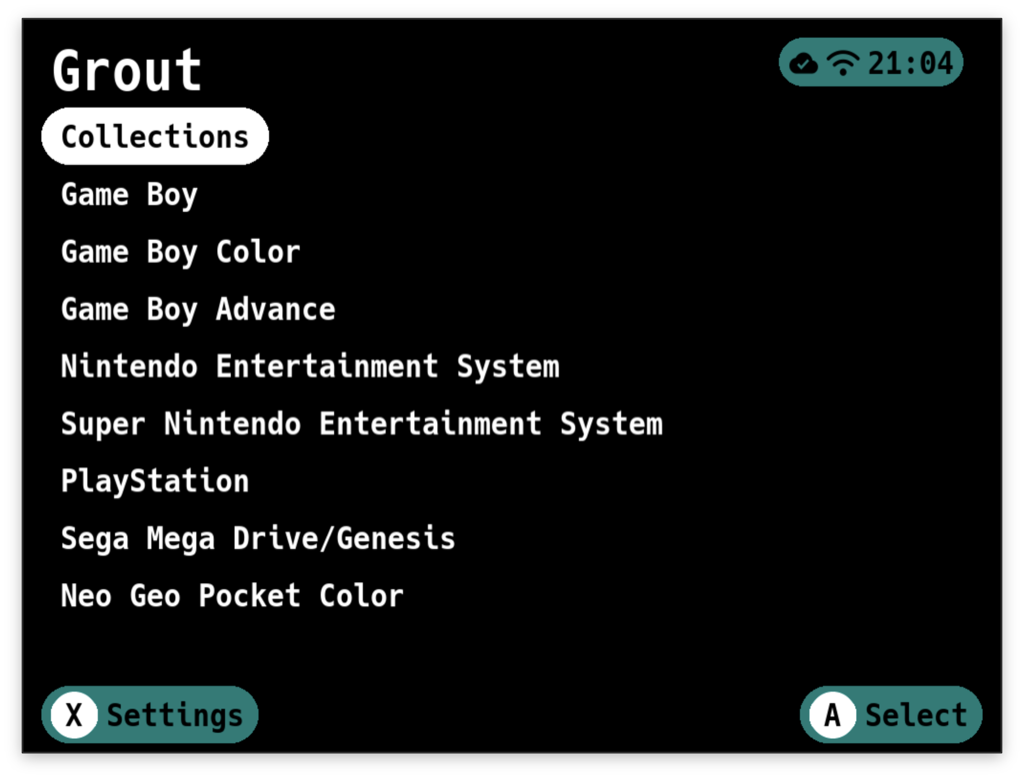
At the top, you'll see "Collections" (if you have any collections set up in RomM). Below that, you'll see all your RomM platforms - NES, SNES, PlayStation, whatever you've got.
Navigation:
Up/Downto scroll through platformsAto select a platform or collectionXto open SettingsYto open the Sync Menu (shown when a device is registered for Save Sync; hidden in Kid Mode)Selectto enter reordering modeBto quit Grout
Reordering Platforms:
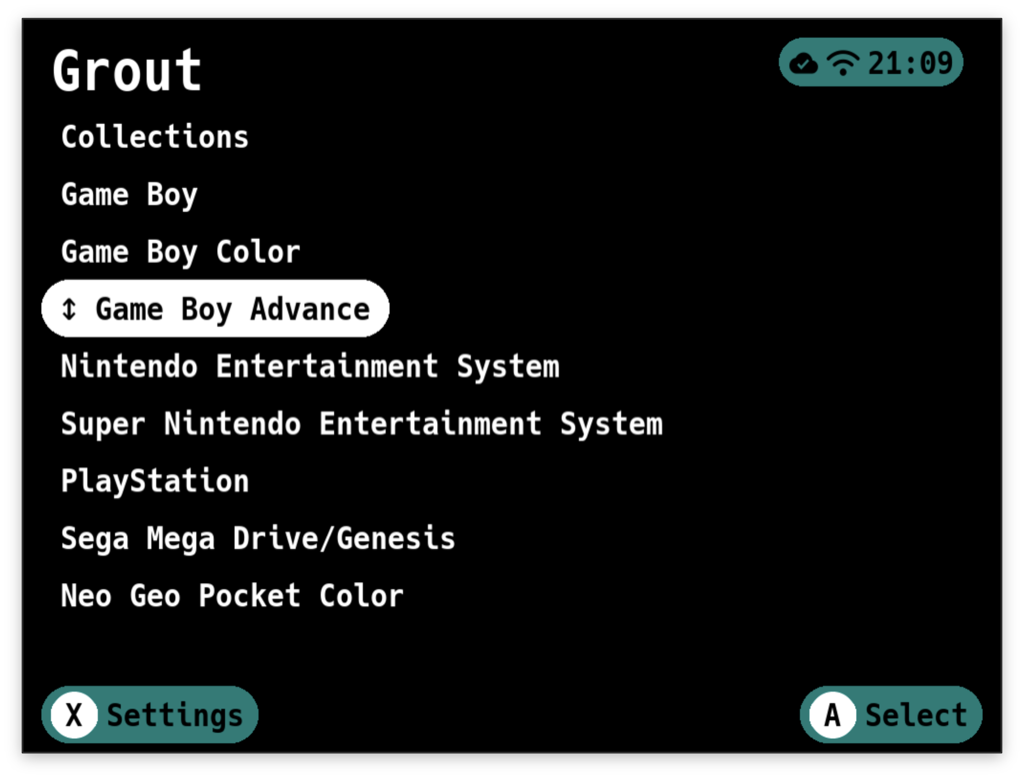
Press Select to enter reordering mode. An arrow will appear next to the currently selected platform.
While in this mode:
Up/Downto move the platform one positionLeft/Rightto move the platform one page at a timeAto place the platform into its new position
Your custom platform order is automatically saved to the config and will persist across sessions.
Collections
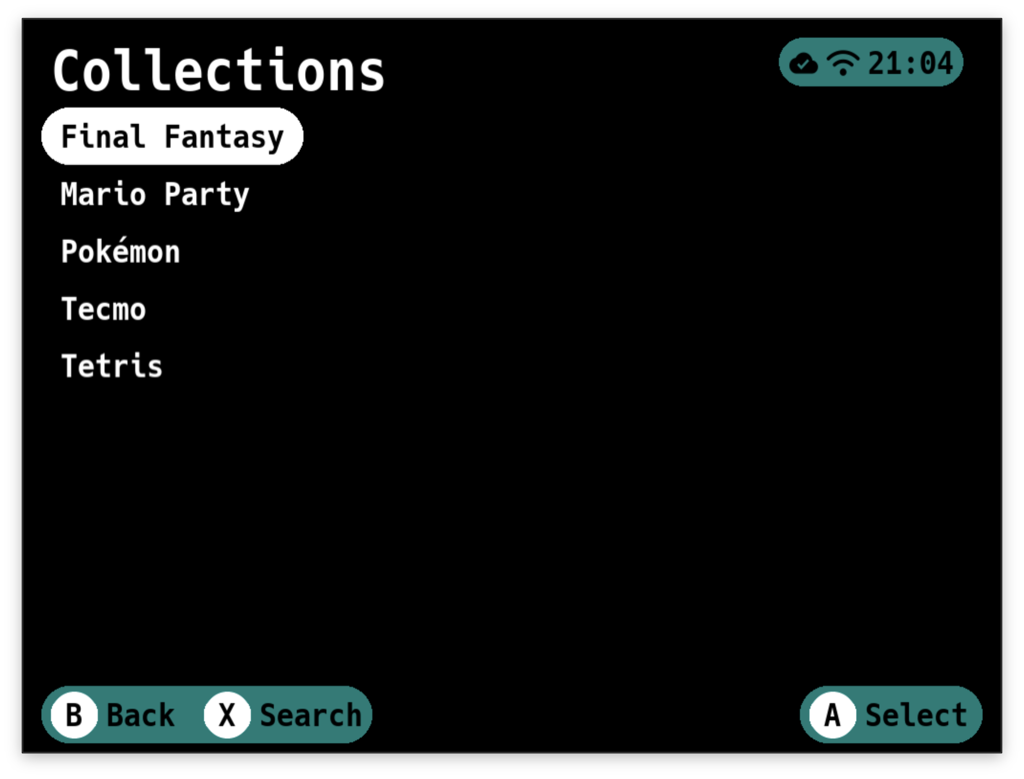
Grout has two views for collections. You can choose this view in the Settings > Collections menu.
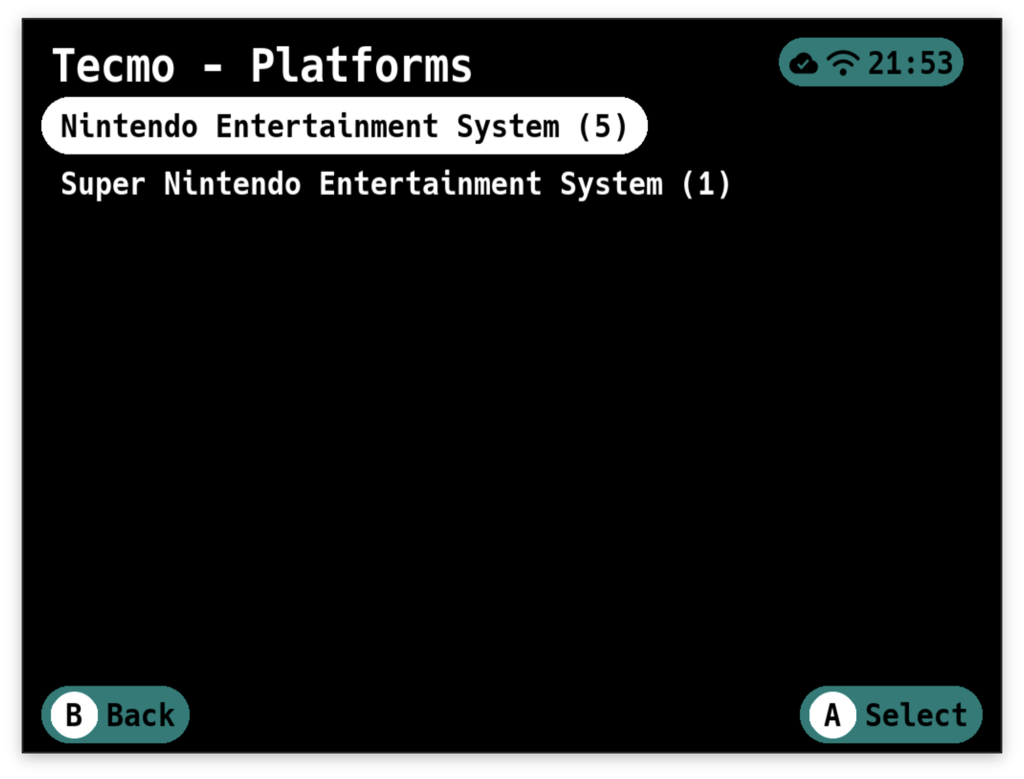
Platform - After selecting a collection, you'll see a platform selection screen showing all platforms in that collection. Select a platform to view games from only that platform.
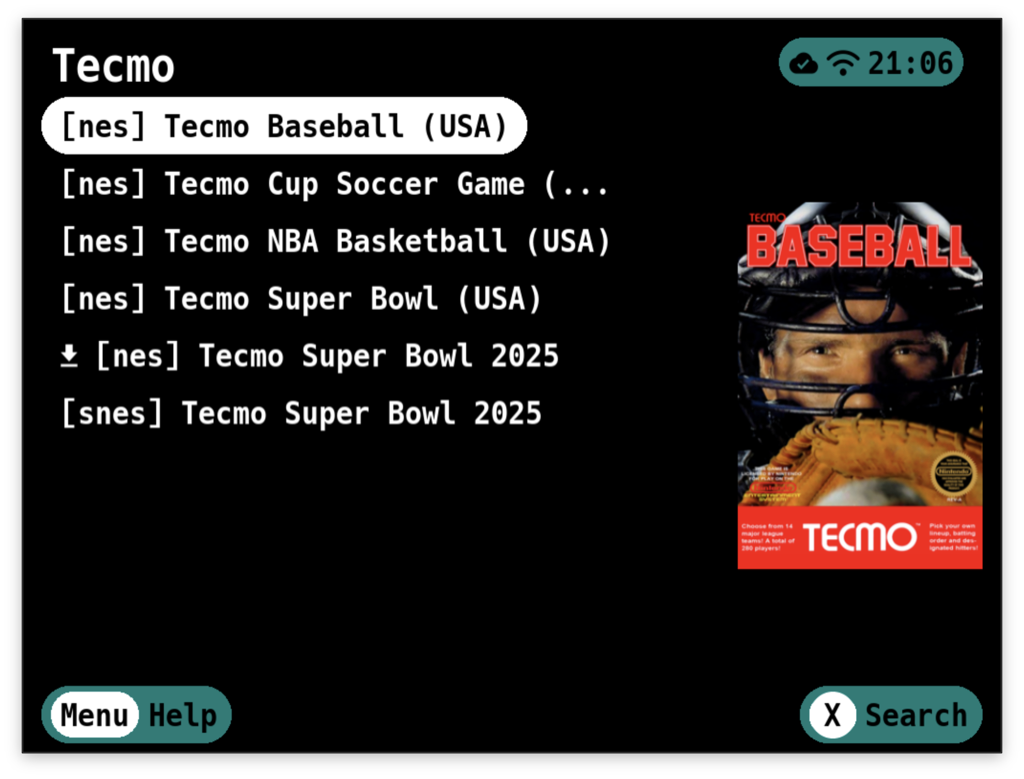
Unified - After selecting a collection, you'll immediately see all games from all platforms with platform slugs
shown as prefixes (e.g., [nes] Tetris, [snes] Tetris Battle Gaiden)
Warning
If you skipped a platform in the mapping screen, you won't see games for that platform in your collections.
Tip
Regular collections, smart collections, and virtual collections can be toggled on/off in Settings.
Game List
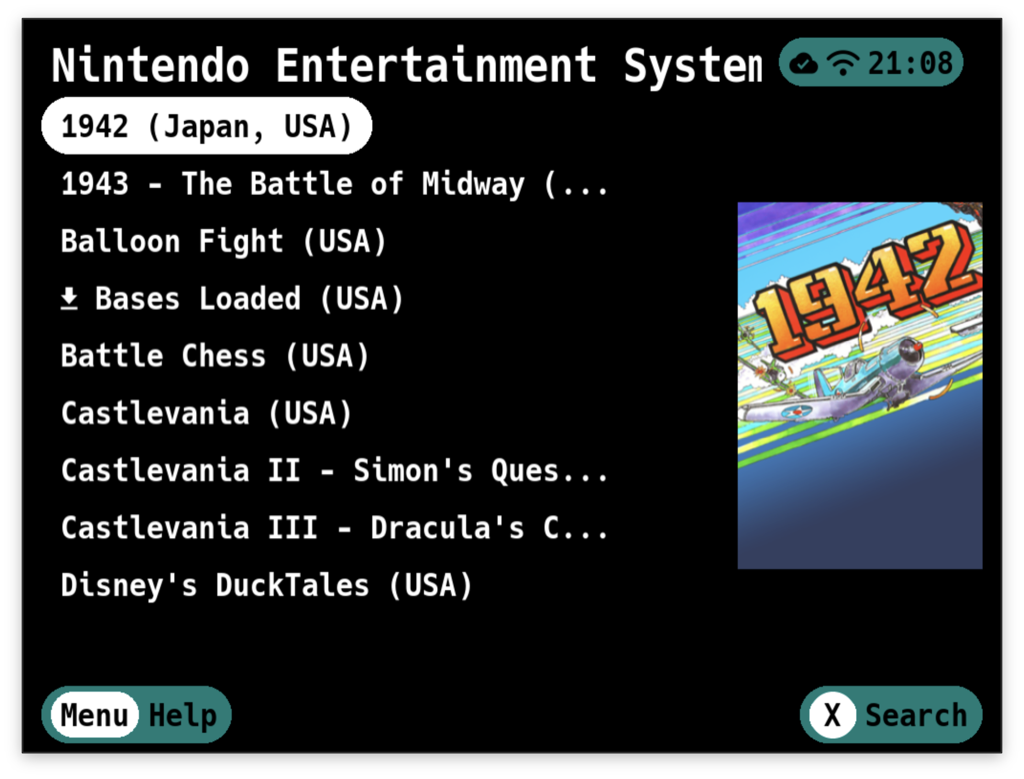
The title bar shows you where you are - either a platform name or a collection name.
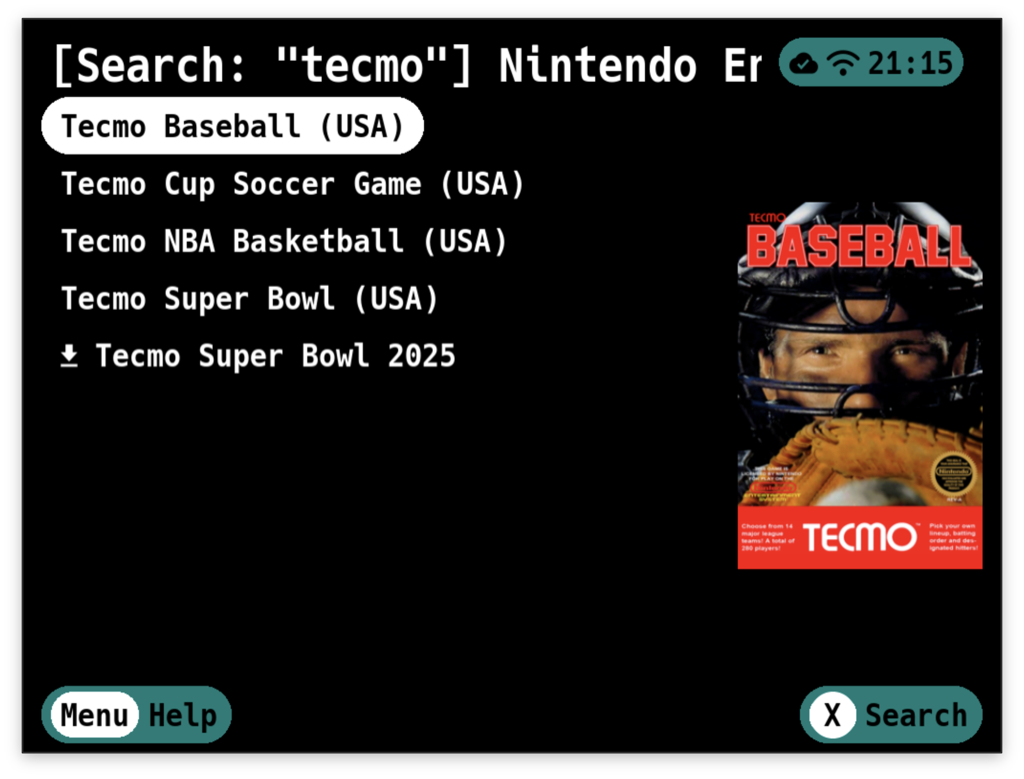
If you entered a search query, you'll see [Search: "your search term"] | Platform / Collection Name.
Navigation and Selection:
Up/Downto scroll through gamesLeft/Rightto skip entire pagesL1/R1to jump to the previous/next letter groupAto select a single gameSelectto enter multi-select mode, then useAto select/deselect gamesXto open the search keyboardYto open filtersMenu(orL2on Miyoo devices) to access BIOS downloads (when available)Bto go back (clears the active search or filters first, most recent first)
Multi-Select Mode:
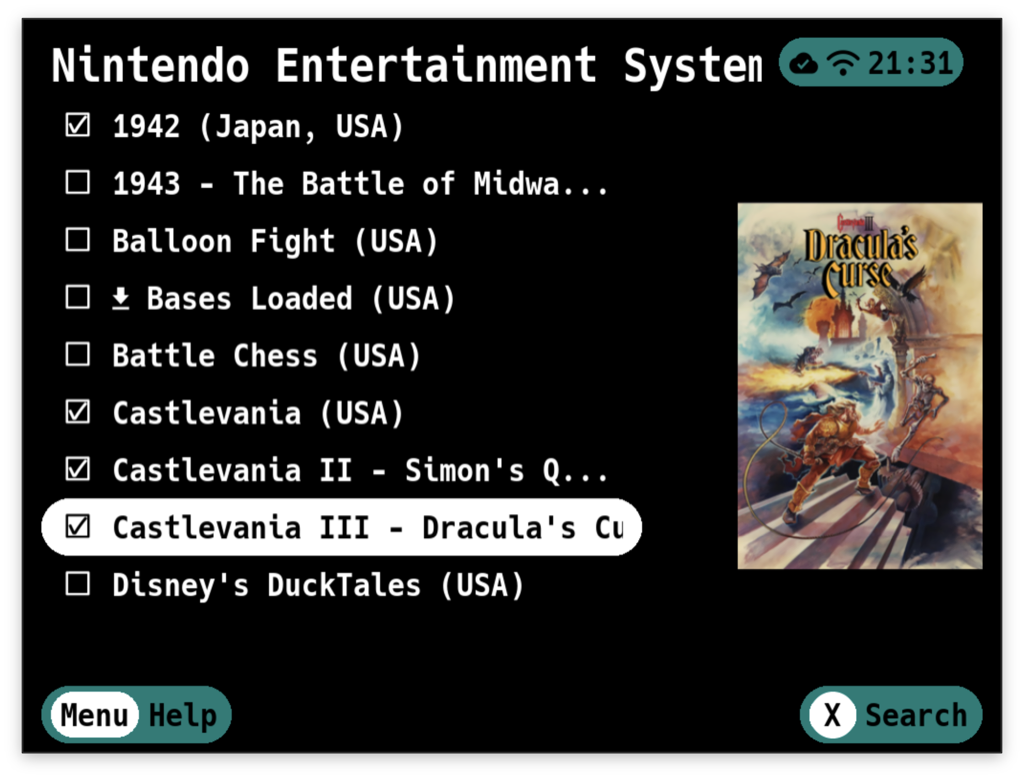
Press Select once to enable multi-select. You'll see checkboxes appear next to each game. Now when you press A on a
game, it toggles selection instead of immediately downloading. This is perfect when you want to grab a bunch of games at
once.
Check all the ones you want, then press Start to confirm your selections.
While in multi-select mode:
R1to select all gamesL1to deselect all gamesSelectagain to exit multi-select mode
Tip
Box art must be enabled in Settings for it to appear.
Filters
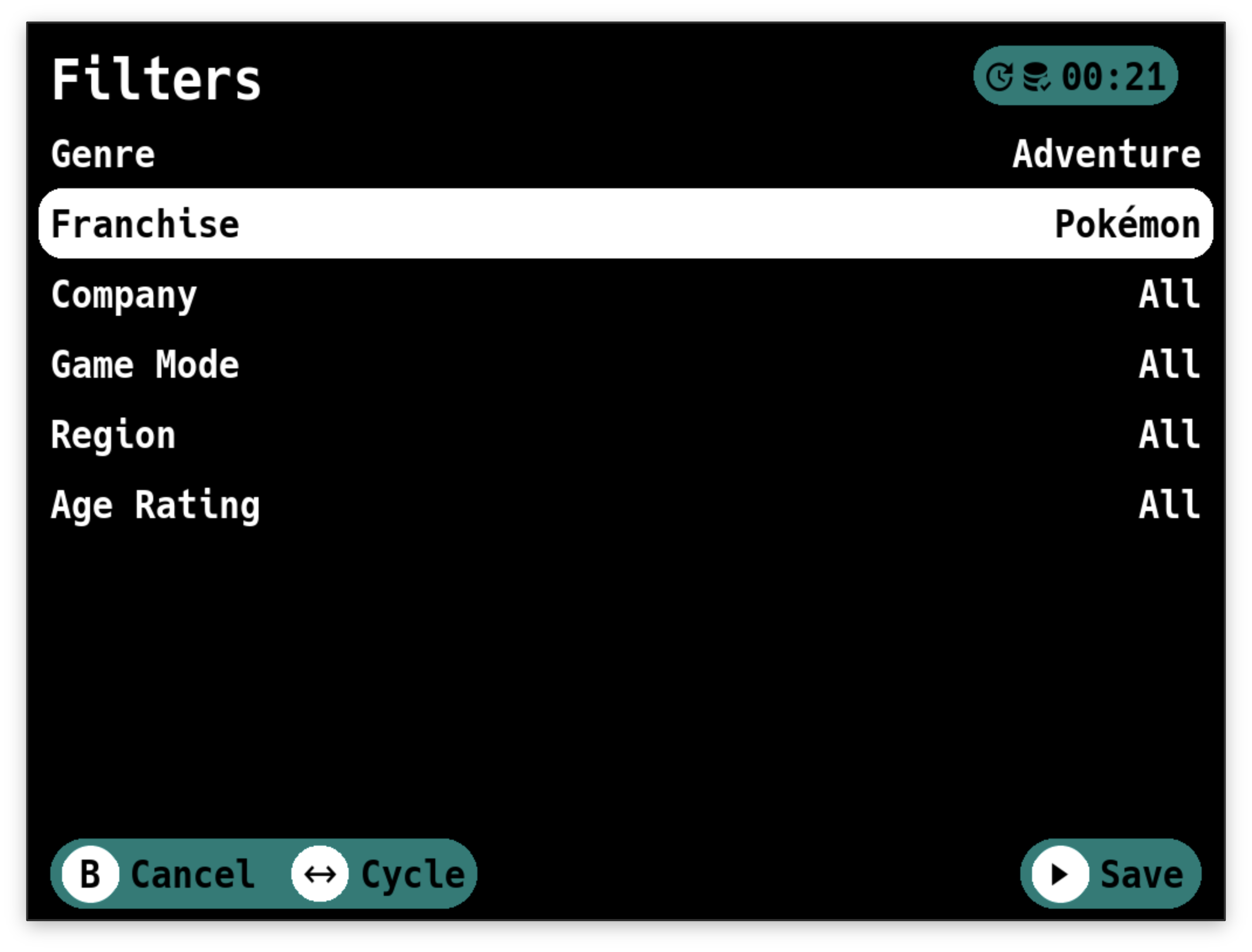
Press Y from any game list to open the filters screen. You can filter games by:
- Genre
- Franchise
- Company
- Game Mode
- Region
- Language
- Age Rating
- Tag
Only filter categories that have values for the current platform are shown. On the filters screen, use Left/Right to
cycle a filter's values (or press A to open a list picker), then press Start to apply or B to cancel.
When a filter is active, the title bar displays [Filtered]. Pressing B in the game list clears the active search
and filters — most recently applied first — before going back.
Search
Press X from any game list to search.
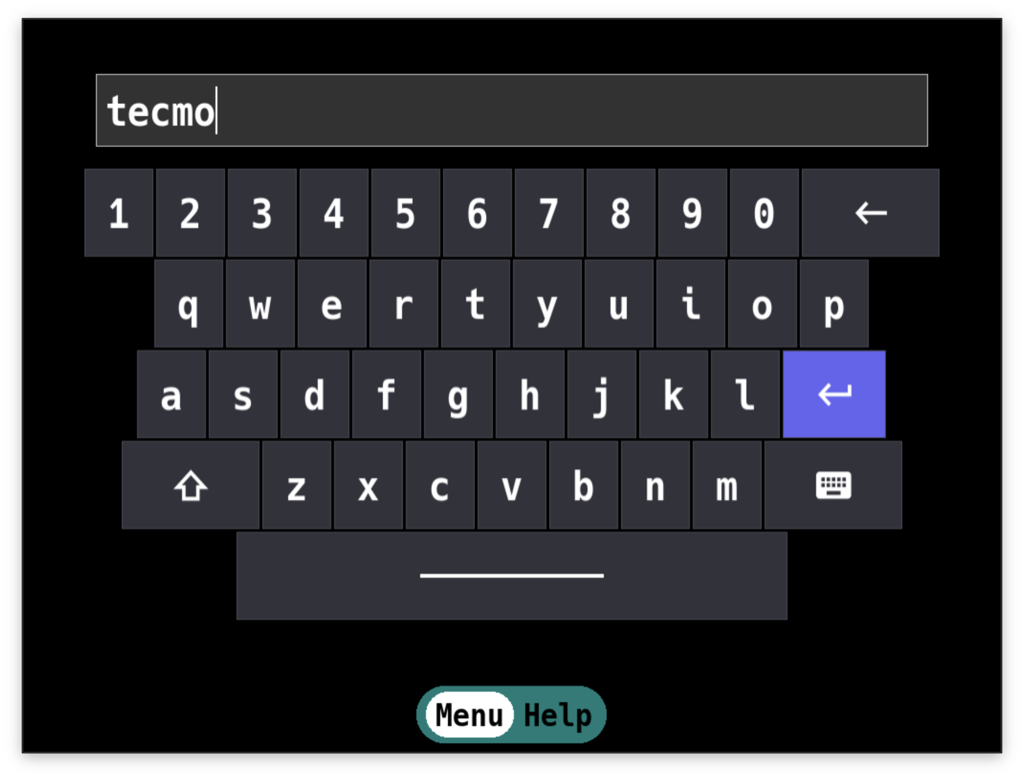
Type your search term using the on-screen keyboard and confirm. The game list will filter to show only matching titles. The search is case-insensitive and matches anywhere in the game name.
To clear a search and return to the full list, press B.
Game Details
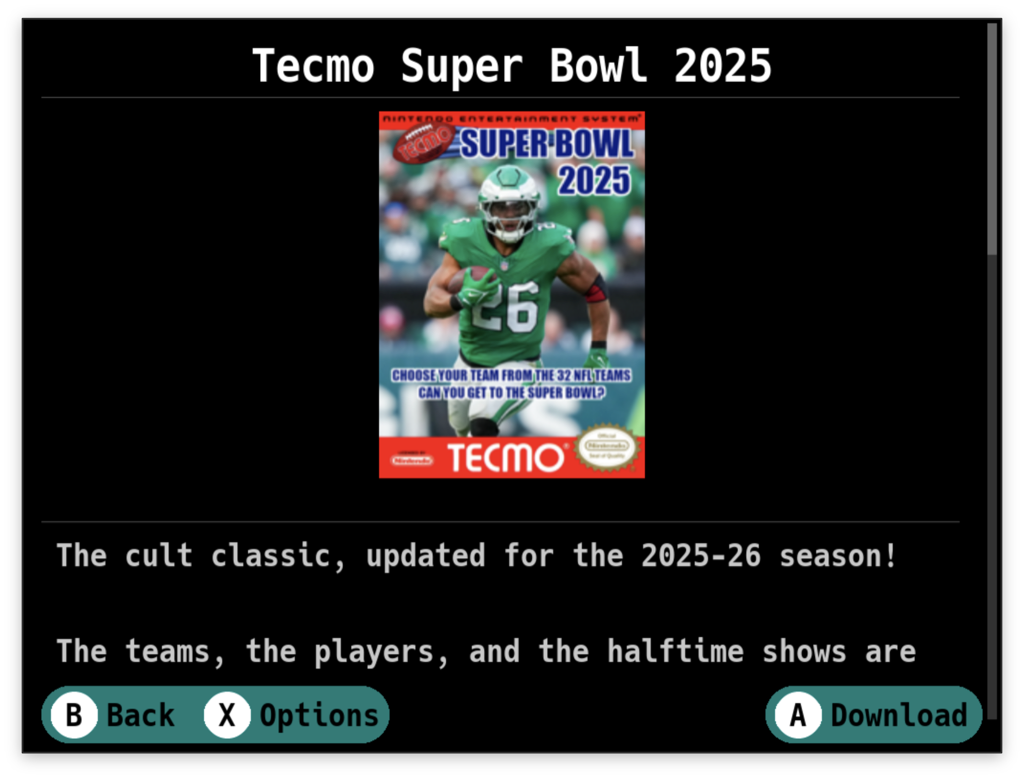
You'll see:
- Cover art - The game's box art (if available)
- File Version dropdown - If the game has multiple file versions (like different regions or revisions), use this dropdown to select which version to download. Already-downloaded versions are marked with a download icon.
- Summary - A description of the game
- Metadata - Release date, genres, developers/publishers, game modes, regions, languages, and file size
- Multi-file indicator - If the game has multiple files (like multi-disc PlayStation games)
From here:
Ato download the game (orXif a file version dropdown is present)Yto open Game OptionsUp/Downto scroll,Left/Rightto jump between sectionsBto go back without downloading
File Version Selection
Some games in RomM may have multiple file versions - for example, different regional releases (USA, Europe, Japan) or different revisions (Rev A, Rev B). When a game has multiple versions available:
- A File Version dropdown appears on the game details screen
- Use
Up/Downto scroll to the dropdown, then pressAto expand it - Select the version you want to download
- Versions you've already downloaded are marked with a download icon prefix
- Press
Xto download the selected version
Game Options
- Save Slot - Choose which save slot to sync to for this game. Appears when Save Sync is enabled (device registered). You can select an existing slot or create a new one with New Slot.... Changing the slot triggers a sync automatically. See Save Slots for details.
- Show QR Code - Display a QR code that links to this game's page on your RomM web interface.
Important
Kid Mode Impact: When Kid Mode is enabled, the Game Options screen is hidden. See Settings Reference to learn how to temporarily or permanently disable Kid Mode.
Downloading Games
After you've selected games (either from the game list or game details screen), the download manager kicks in.
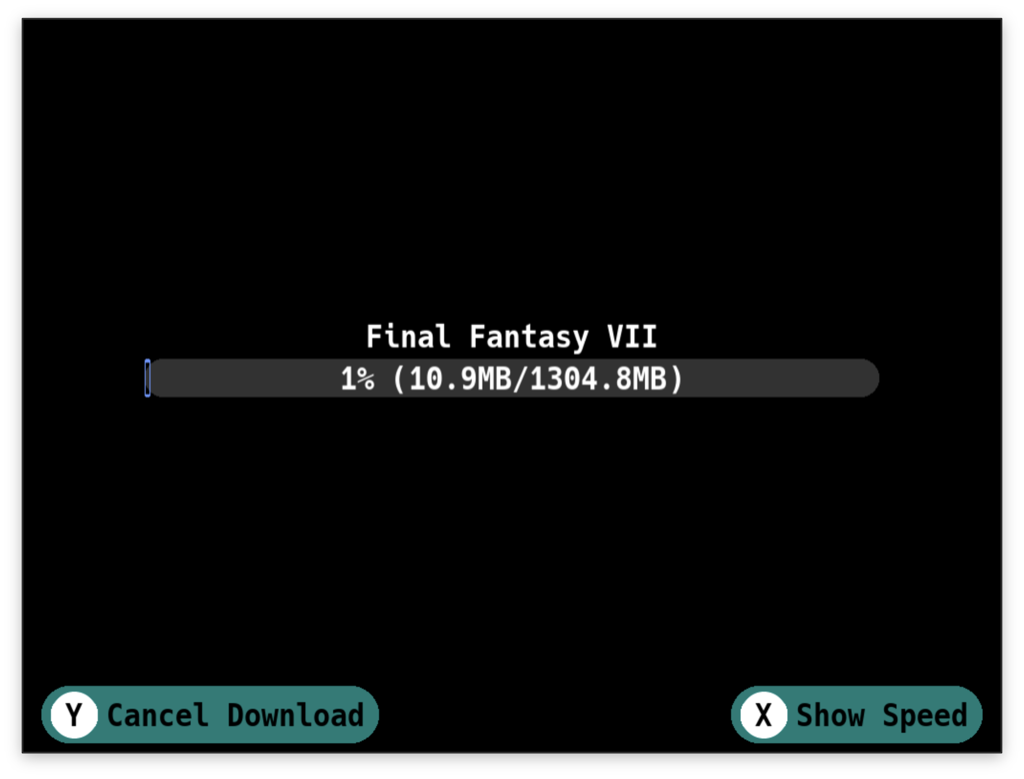
You'll see a progress bar and a list of games being downloaded. Grout downloads your ROMs directly from RomM to the
appropriate directory on your device. Press Y to cancel the download, or X to toggle the download speed display.
What Happens During Download:
-
ROM files are downloaded - The game files are saved to the correct platform directory you mapped earlier.
-
Multi-file games are extracted automatically - If you're downloading a multi-disc game, Grout downloads a zip file, extracts it, and creates an M3U playlist file so your emulator can handle disc switching.
-
Artwork is downloaded - If "Download Art" is enabled in Settings, Grout downloads box art for each game to your artwork directory after the ROMs finish. This artwork is only displayed within Grout - it does not affect artwork shown in your CFW's game list.
-
Archived files are extracted automatically - If "Archived Downloads" is set to "Uncompress" in Settings, Grout will extract zip and 7z files to the configured ROM directory and then delete the archive.
If a download fails, Grout will show you which games had problems and clean up any leftover cruft.
When everything's done, you're dropped back to the game list. The games you just downloaded are now on your device and ready to play.
BIOS Files
Many emulators require BIOS files to function properly. Grout can download these files directly from your RomM server to the correct location on your device.
Important
Kid Mode Impact: When Kid Mode is enabled, the BIOS download screen is hidden. See Settings Reference to learn how to temporarily or permanently disable Kid Mode.
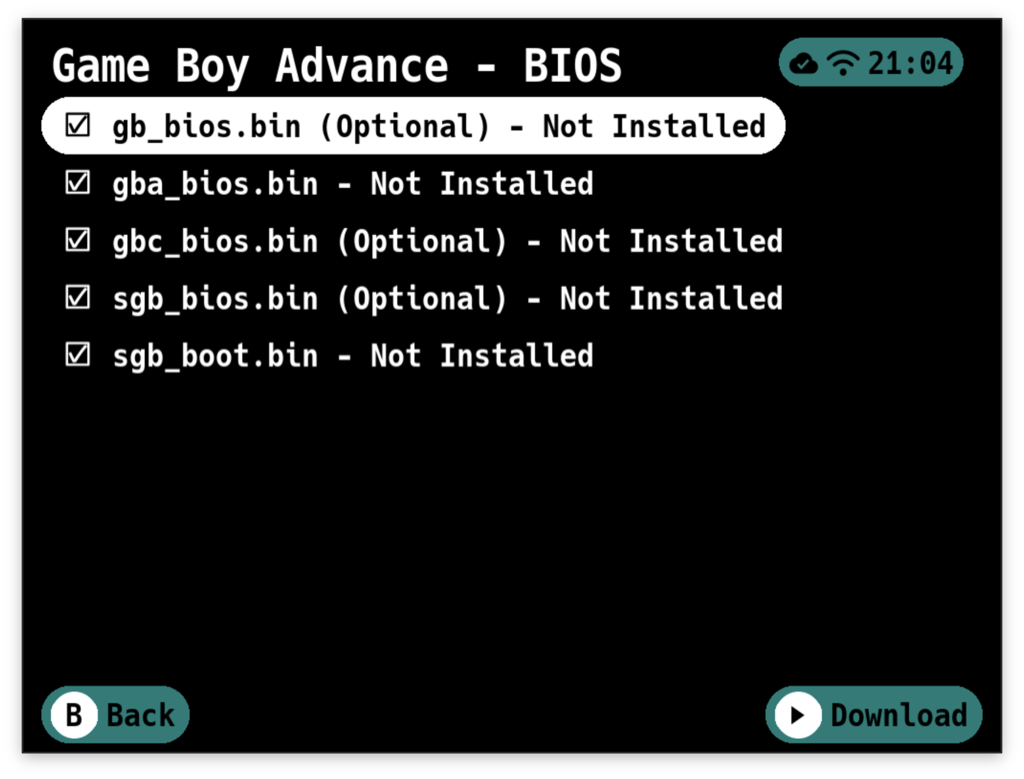
Accessing BIOS Downloads
From the game list, press Menu (or L2 on Miyoo devices) on a platform that has BIOS files available in your RomM
library. You'll see a "BIOS" option in the footer when BIOS files are available for that platform.
On the BIOS screen, missing files are pre-selected. Press A to toggle individual files, Start to download the
selected files, or B to go back.